
Once you have digitally signed your Advance Directive, you will be able to add Witness and/or Notary signatures by following the below steps:
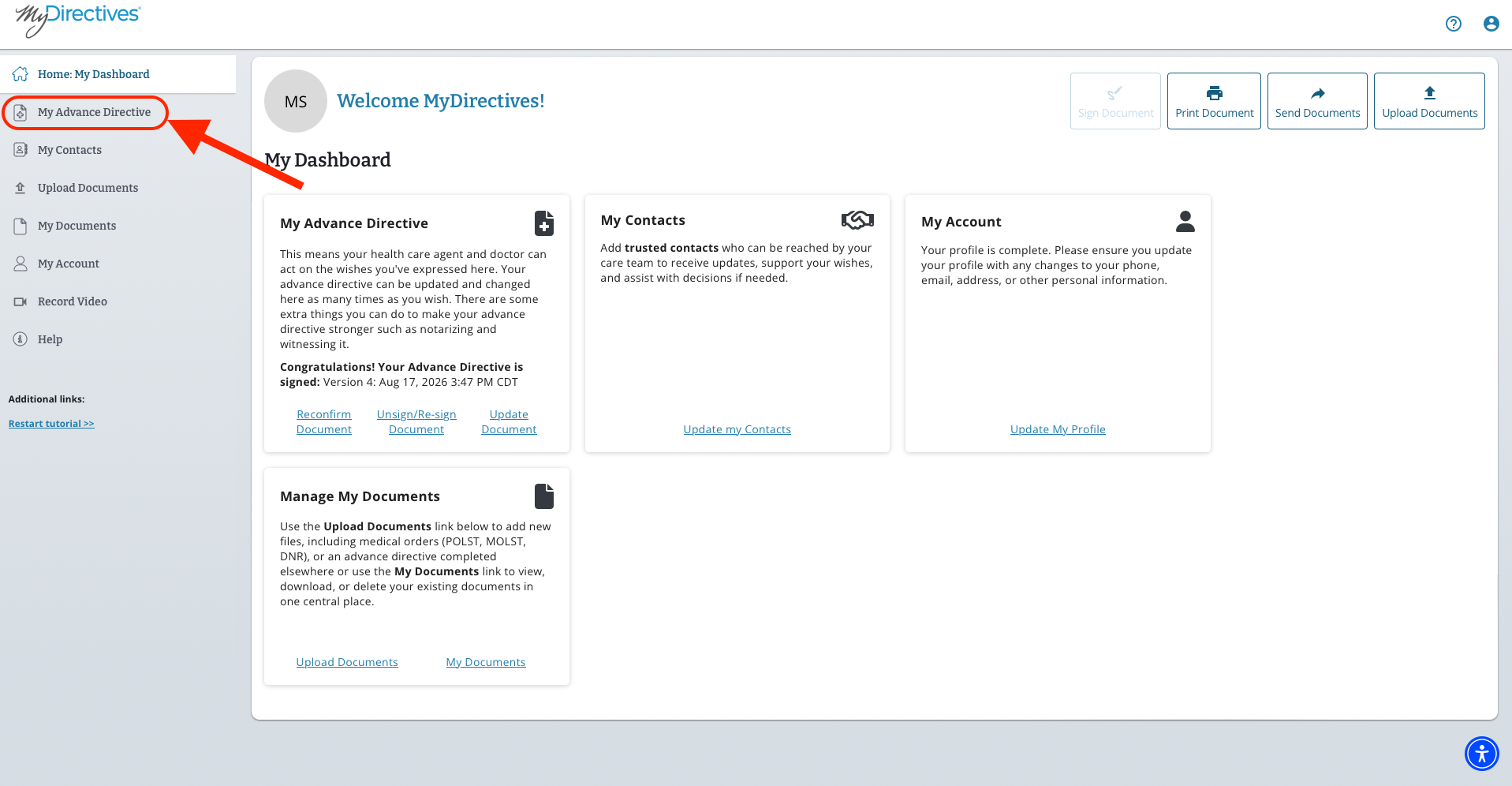
Starting in your dashboard, click on the My Advance Directive button on the left-hand side of your screen.
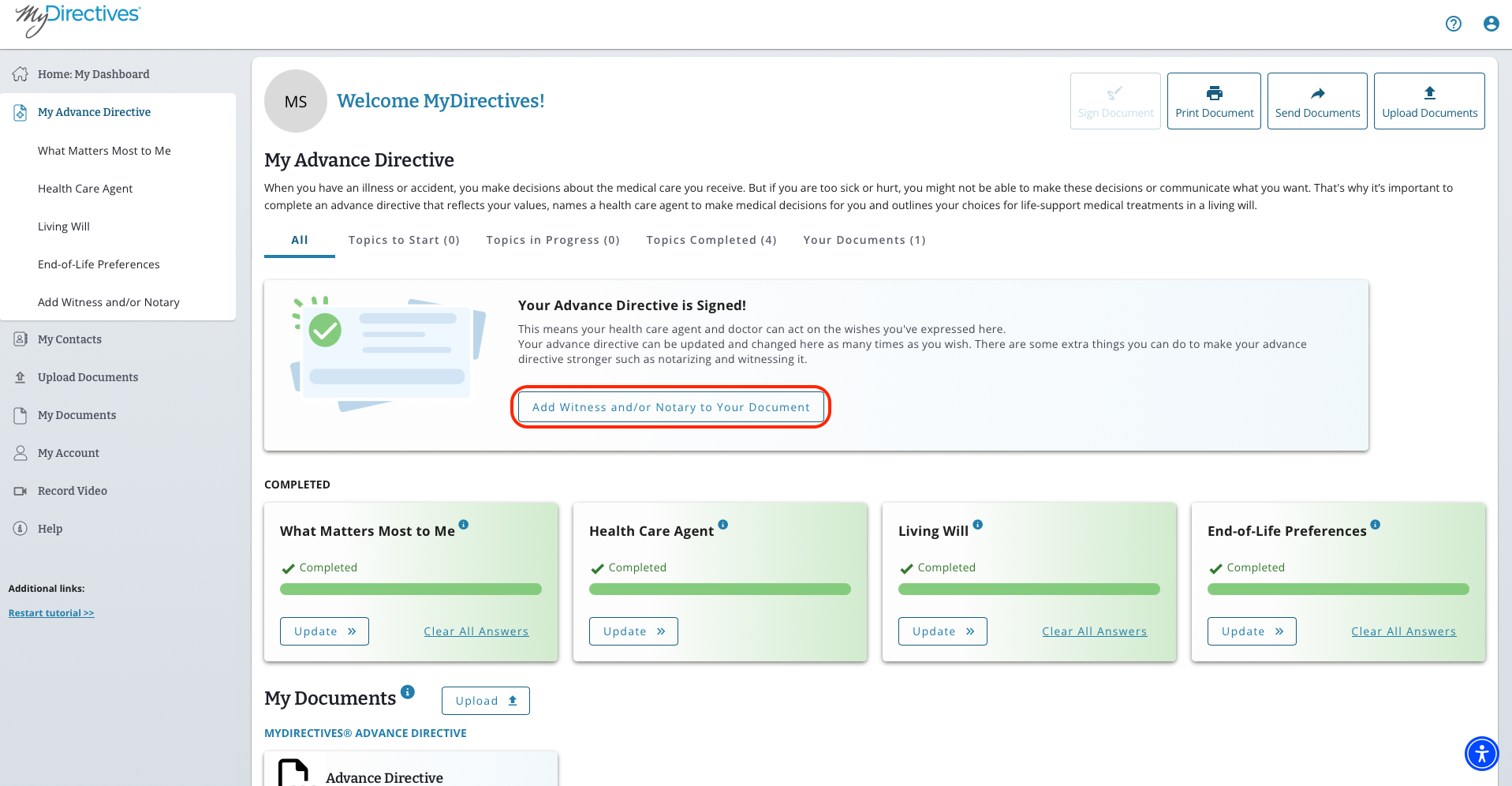
From there, you will need to click on the Add Witness and/or Notary to Your Document button to be taken to the Witness/Notary Page.
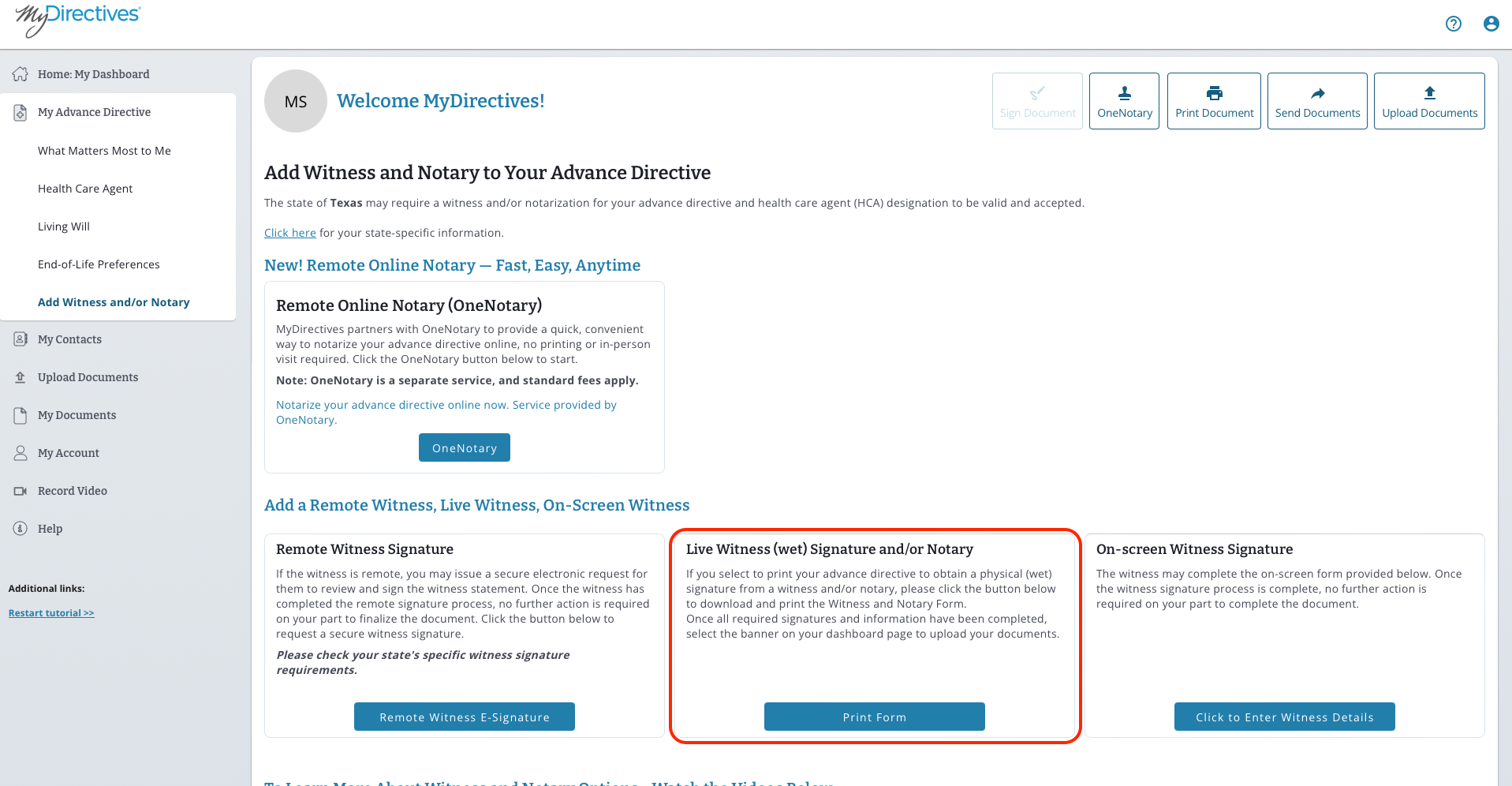
Since you wish to collect Witness and/or Notary signatures live, you will need to select the option by clicking on the Print Form button. Upon downloading the form, you will have a blank document for collecting all the signatures (yours, witnesses, and/or your notary).
Once you have obtained all your signatures, you will want to make a digital image of it either by taking a photo with your mobile phone or using a scanner to create an image you can upload to your MyDirectives account. Be sure to save the scanned image on your device where you can find it later to upload it into your MyDirectives account.
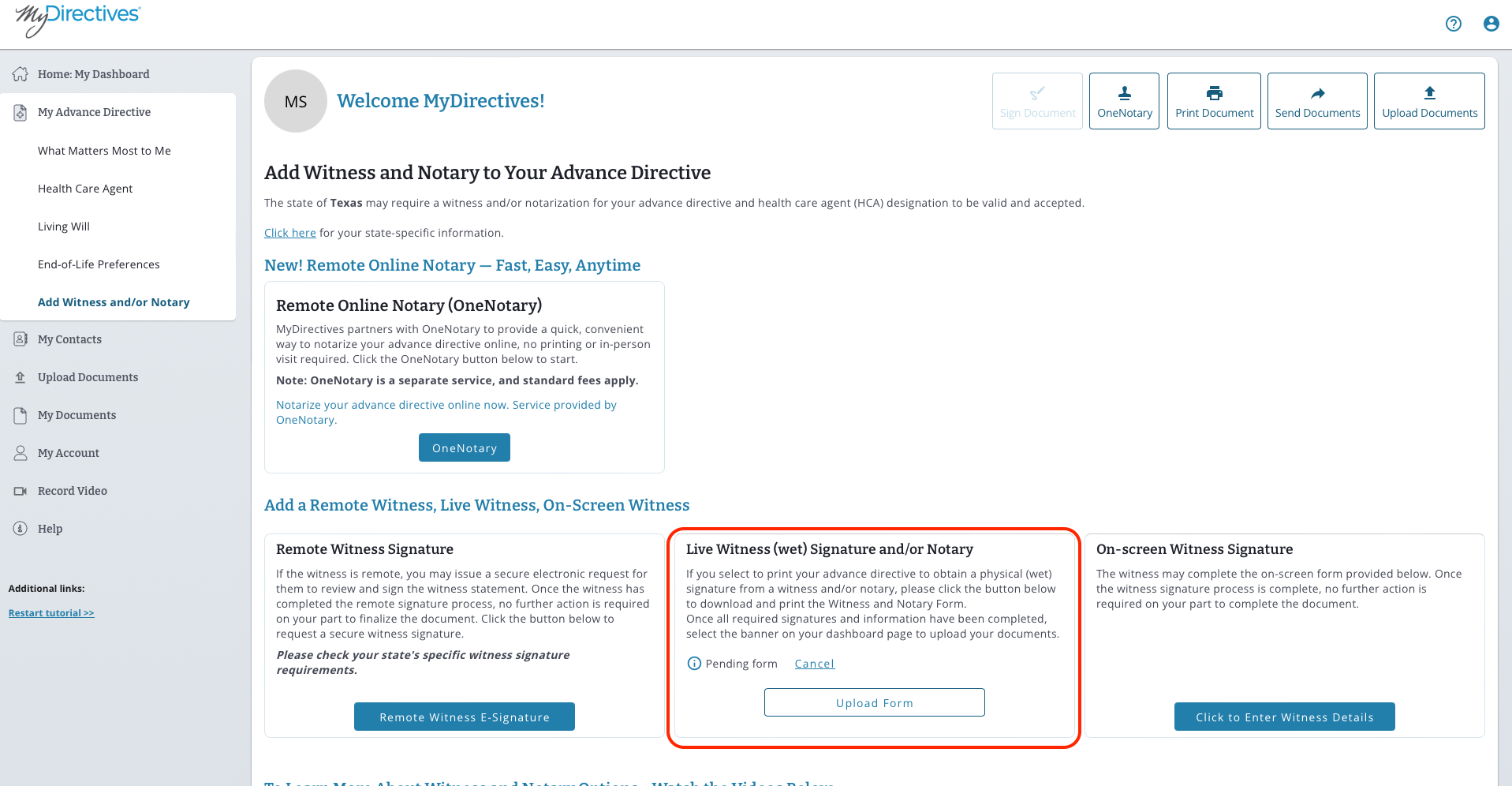
Once your document is ready to be added back into your MyDirectives account, click on the Upload Form button to begin uploading it back into your account.
Once this is complete, you will have your signed document merged into your Advance Directive.